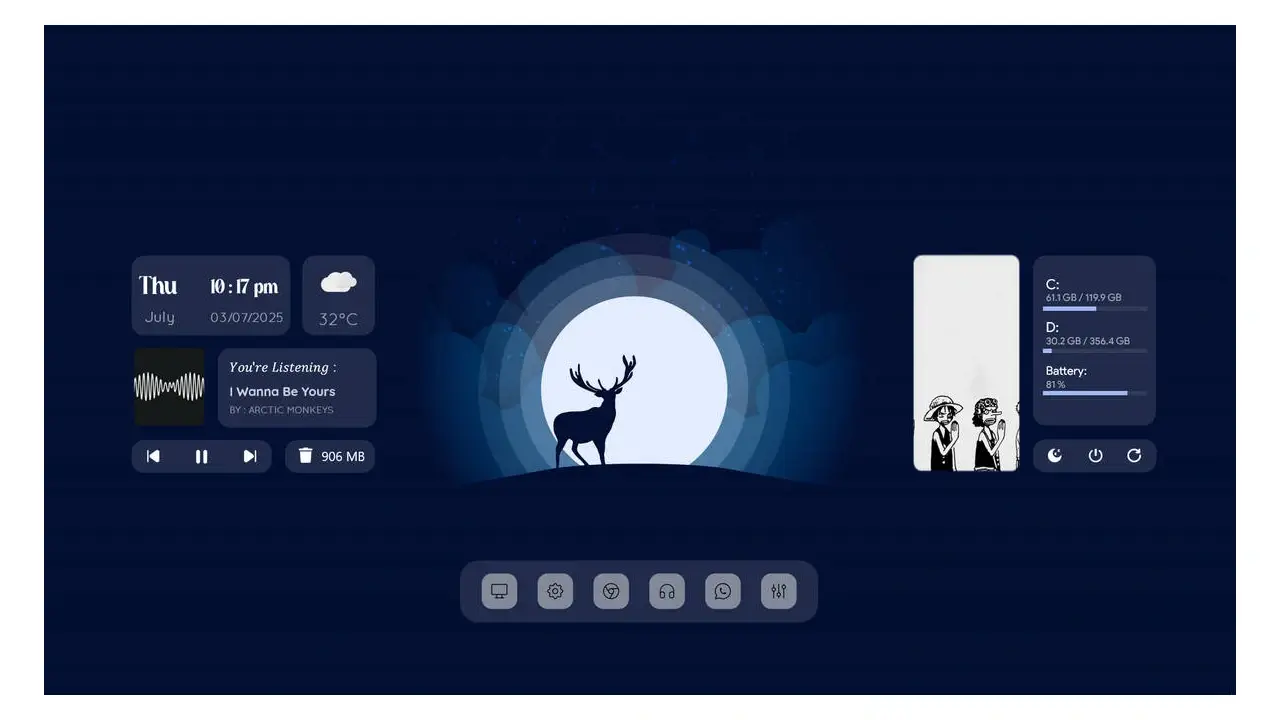
Stellar, a premium Rainmeter skin designed to bring order, clarity, and style to your Windows interface. Whether you’re a productivity-focused user or someone who simply appreciates minimalist aesthetics, Stellar delivers a polished experience right out of the box. With clean tiles, a stunning wallpaper, and fully customizable modules, it’s more than just a skin—it’s a complete desktop enhancement toolkit.
About the Stellar Skin
Stellar is a carefully crafted Rainmeter skin by artist aohiocawhda, originally based on Zopenzop’s “Centric” concept—which was never officially released—making Stellar a unique revival and improvement of that vision. It features a modern, tile-based layout combined with a premium clean wallpaper that instantly elevates your desktop environment.
The skin is built for both personal use and customization, offering a mix-and-match architecture where users can rearrange or even separate individual components if desired. Ideal for users who want a professional, uncluttered look without sacrificing functionality.
Clean Tile-Based Layout
Organized, modular widgets that group related functions neatly
Weather Widget
Pulls live weather data (configurable in WVariables.inc)
Music Player Widget
Compatible with WebNowPlaying for real-time music info
Transparent & Clean UI
Glassmorphism-inspired design that adapts to your theme
Fully Customizable Variables
Easy to tweak via Variables.inc for fonts, colors, icons, and positions
How to Install Rainmeter Skins
Follow these simple steps to install a Rainmeter skin on Windows:
Download the Rainmeter skin from the link below.
Install Rainmeter if you haven’t already.
Open your Downloads folder and locate the downloaded .rmskin file.
Double-click the .rmskin file (or right-click and choose Install) to install the skin.
Open the Rainmeter Manage window by:
Right-clicking the Rainmeter icon in the system tray and selecting Manage, or
Right-clicking the loaded skin and selecting Manage Skin.
From the Manage window, load, unload, or customize the installed Rainmeter skin to match your desktop setup.
Your Rainmeter skin is now installed and ready to personalize your Windows desktop.
Q
Can I use individual tiles without the full layout?
Yes! All tile skins are included separately. You can drag them around Rainmeter’s UI to build your own custom arrangement.
Q
How do I change weather data sources?
Open WVariables.inc in Stellar@\Resources and update the API key or source URL as needed.
Q
Does Stellar require WebNowPlaying?
Only if you want music player functionality. It’s optional but recommended for full features.
Q
Is this skin compatible with Windows 11?
Yes
About The Developer
aohiocawhda
aohiocawhda is the creator of Summit Rainmeter Skin and a desktop customization artist on DeviantArt. Their work focuses heavily on clean, minimal, and visually polished desktop setups.
Alongside Summit, aohiocawhda has created several other Rainmeter and desktop customization projects, including Singularity, Sylva, Stellar, Canopy, Golden Hour, and Frieren Minimalistic Rainmeter Desktop.
If you enjoy minimal Rainmeter setups, exploring the creator's other projects is a great way to find more skins with a similar clean and aesthetic design style.